
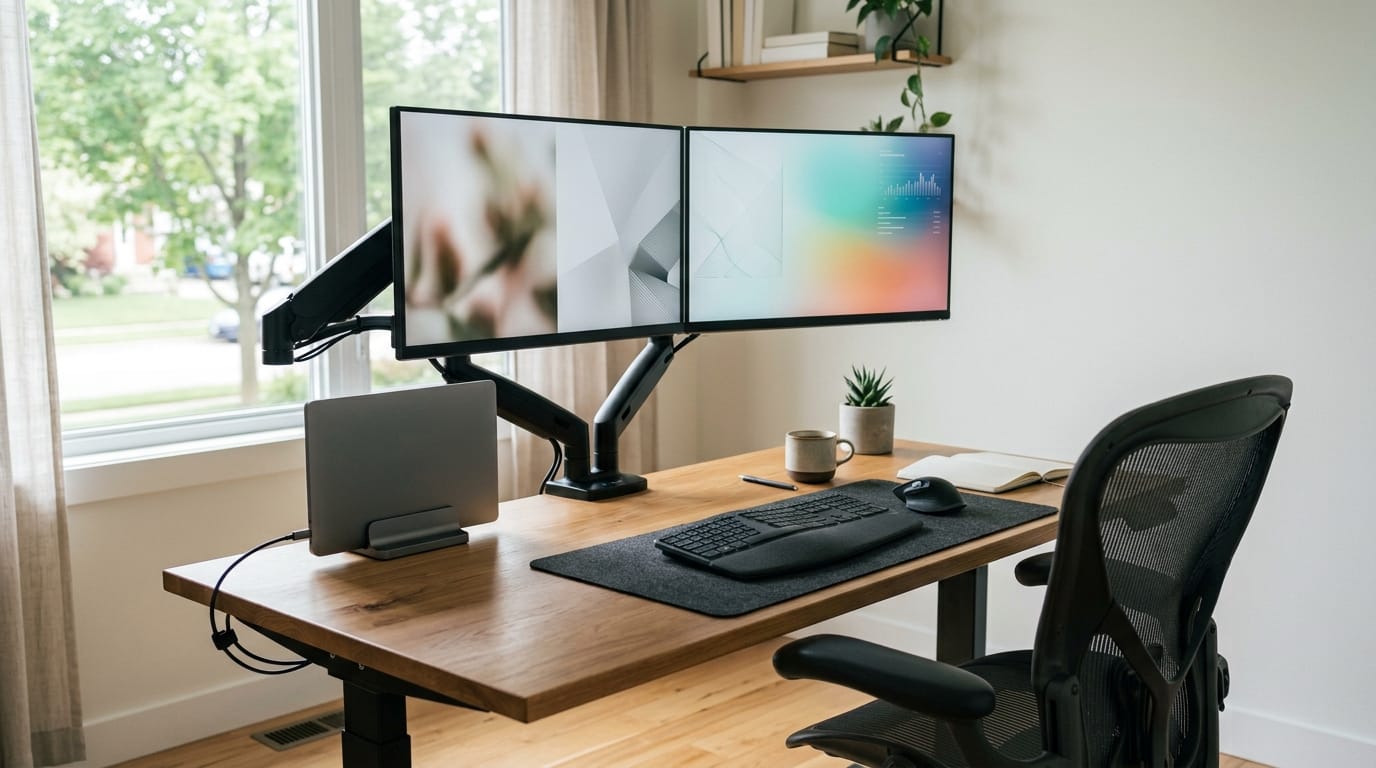
Screen-first workstation ergonomics in 2026 are becoming more important because most office work now happens through displays. Employees are not only typing at a desk anymore. They are joining video calls, managing dashboards, reading long documents, switching between apps, reviewing data, presenting on shared screens, and using multiple devices throughout the day. If the workstation is not designed around the screen, discomfort builds quickly.
Digital fatigue is not only about tired eyes. Poor display placement can contribute to neck strain, shoulder tension, headaches, leaning, poor posture, and lower productivity. A beautiful desk will not help much if the monitor is too low, too close, too far, off to the side, or surrounded by glare. That is why screen-first ergonomics should be part of every modern office furniture plan.
For Compulsive Painball readers, this article connects well with AI-ready home office setup, ergonomic office chair setup, and plug-and-play power furniture. The right chair matters, but the screen setup matters just as much.
Why Screen-First Ergonomics Matter in Modern Workspaces
A screen-first workstation starts with one simple idea: the display should support the worker’s natural posture, not force the worker to adapt all day. When a monitor is too low, people bend their neck forward. When it is too high, they tilt their head back. When it sits off to the side, they twist their neck and shoulders. When it is too close, the eyes work harder. When it catches glare, the body starts leaning and squinting.
These problems may seem small in the first hour. After a full workday, they become much more noticeable. After months, they can become part of the office’s daily discomfort. That is why screen-first ergonomics should be planned before buying desks, monitor arms, lighting, chairs, or shared workstations.
Monitor placement is the foundation of screen comfort
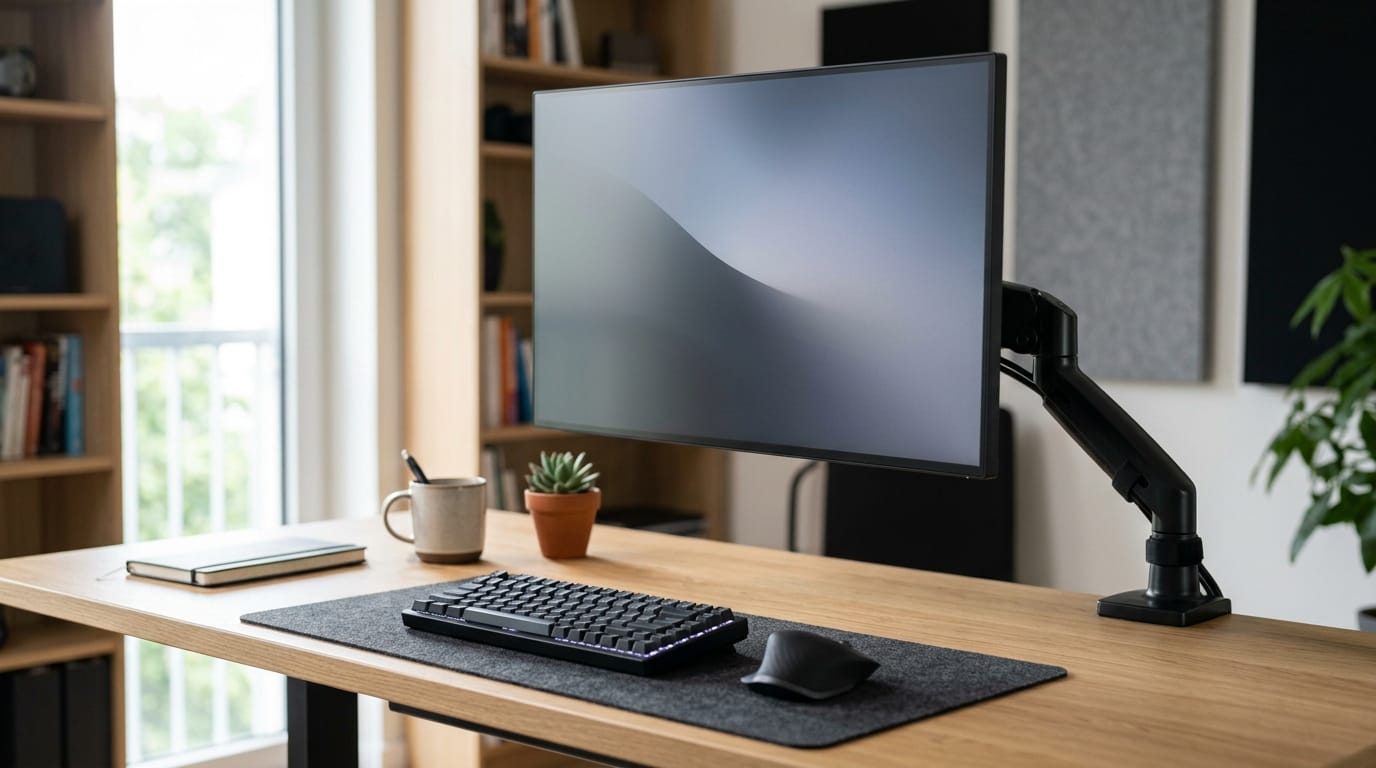
Monitor placement is one of the most basic but most ignored parts of office ergonomics. A good setup should keep the screen directly in front of the user, at a comfortable distance, and at a height that allows the head and neck to stay balanced. OSHA recommends placing the monitor directly in front of the user, at least 20 inches away, and positioning the top line of the screen at or below eye level.
This does not mean every employee needs the exact same setup. People have different heights, vision needs, desk depths, chair settings, and work tasks. That is why adjustable furniture and accessories are so useful. A fixed monitor stand may work for one person but fail for another. A monitor arm gives users more control.
Why laptop-only workstations cause problems
Laptops are convenient, but they are not ideal as the only workstation for long hours. The screen and keyboard are attached, which usually forces a compromise. If the laptop is low enough for typing, the screen is too low for the neck. If the laptop is raised to eye level, the keyboard becomes uncomfortable.
A better solution is to use a laptop stand with an external keyboard and mouse, or connect the laptop to a separate monitor. This allows the screen to sit at a better height while the hands stay relaxed. For hybrid offices, docking stations and simple cable management make this setup easier for shared desks.
How monitor arms improve shared and hybrid desks
Monitor arms are especially useful in hybrid offices because different employees may use the same desk on different days. A good monitor arm allows quick adjustment of height, distance, tilt, and angle. That means each user can reset the screen without stacking books, dragging heavy monitors, or accepting a poor position.
Monitor arms also free up desk space. This matters for smaller workstations, touchdown desks, and shared hoteling areas. More surface space means cleaner layouts, better keyboard placement, and fewer awkward reaches. If your office already uses shared workstations, this also connects with flexible office furniture for hybrid work.
Digital eye strain is a workstation design issue too
Digital eye strain is often blamed on screen time alone, but the workstation setup can make it worse. Glare, poor lighting, small text, bad contrast, improper viewing distance, dry air, and limited breaks can all add to discomfort. The American Optometric Association recommends the 20-20-20 rule: every 20 minutes, look at something 20 feet away for 20 seconds.
Furniture cannot replace healthy screen habits, but it can make those habits easier. A desk that allows proper monitor distance, a screen arm that reduces glare, and a layout that encourages natural posture can all reduce unnecessary strain. Offices should treat digital comfort as part of workstation planning, not as an afterthought.
Glare control should be planned with furniture layout
Glare is one of the quickest ways to ruin a workstation. If a screen faces a bright window or reflects overhead lights, employees may squint, lean, or tilt the monitor in awkward ways. This creates a chain reaction: the eyes strain, the neck adjusts, the shoulders tighten, and posture breaks down.
The best solution starts with layout. Position monitors perpendicular to windows when possible. Use blinds, soft lighting, anti-glare screen options, and adjustable monitor arms. Avoid placing desks where workers constantly fight direct sunlight or harsh reflections. A screen-first office is not only about the screen itself. It is about how the screen interacts with light, furniture, and the room.
How to Build a Screen-First Workstation That Works
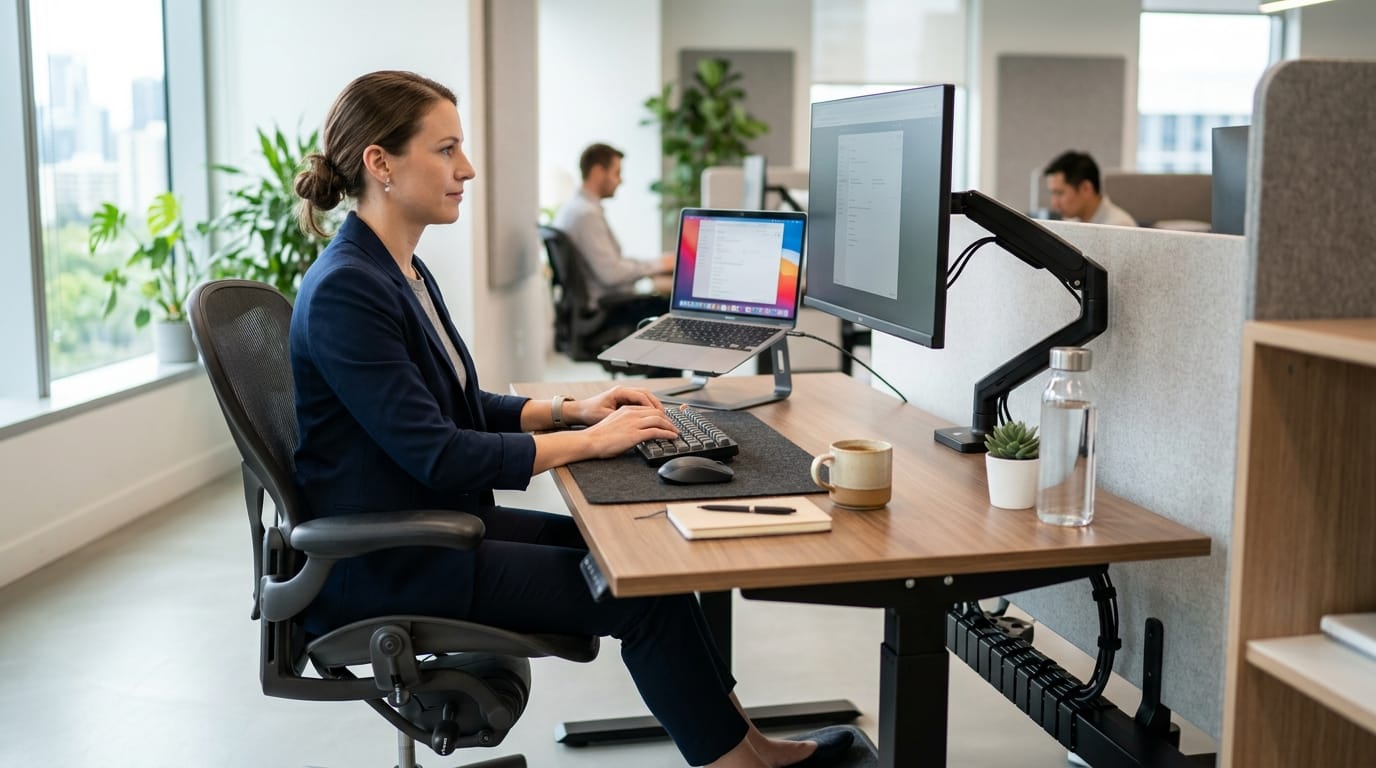
A good screen-first workstation begins with the user’s seated posture. The chair should support the lower back. Feet should rest flat on the floor or on a footrest. Shoulders should stay relaxed. Elbows should sit close to the body. Wrists should remain straight. Once the body is supported, the monitor should be adjusted to match that posture.
From there, choose furniture that supports real work patterns. A person who uses one monitor for writing may need a different setup from someone using two large displays for design, finance, analytics, or video editing. A person who spends hours on video calls may need better camera height, lighting, and acoustic control. A screen-first setup should match the work, not just the furniture trend.
A practical checklist for better display ergonomics
Start with screen height. The top of the monitor should generally sit at or slightly below eye level. If the user wears progressive lenses or bifocals, they may need a slightly lower monitor position to avoid tilting the head back. Next, check distance. The monitor should usually sit about an arm’s length away, depending on screen size and vision comfort.
Then check alignment. The main monitor should be directly in front of the user. If two monitors are used equally, place them side by side with the meeting point centered. If one monitor is primary, keep it centered and place the secondary screen to the side. The goal is to reduce repeated twisting.
Next, check accessories. Use an external keyboard and mouse for laptop setups. Keep frequently used items within easy reach. Use cable trays, grommets, or built-in power access to reduce clutter. For power planning ideas, visit plug-and-play power furniture.
Do not forget movement, breaks, and sit-stand options
Even the best screen setup cannot fix sitting still all day. Workers still need movement, posture changes, and breaks from close-up viewing. Sit-stand desks can help when used properly, especially for people who switch positions throughout the day instead of standing for hours without moving. Your related article on sit-stand desks for hybrid work is a useful internal link here.
For shared or busy offices, acoustic planning also matters. A worker may have a perfect screen setup but still feel drained if the area is noisy and distracting. If digital fatigue is paired with constant sound interruptions, review acoustic office solutions as part of the broader workstation plan.
For official ergonomic guidance, readers can also visit OSHA’s resource on computer workstation monitor setup. It gives practical recommendations for monitor distance, placement, and glare reduction.
Screen-first workstation ergonomics in 2026 are not about buying the most expensive monitor or the trendiest desk. They are about designing around the way people actually work now. The screen is the center of many tasks, so the furniture, chair, lighting, power access, and accessories should support that reality.
The takeaway is simple: if employees spend most of the day looking at screens, the screen setup deserves serious attention. Better monitor placement, adjustable arms, cleaner cables, glare control, and healthier break habits can make the office feel more comfortable, more focused, and more productive.