
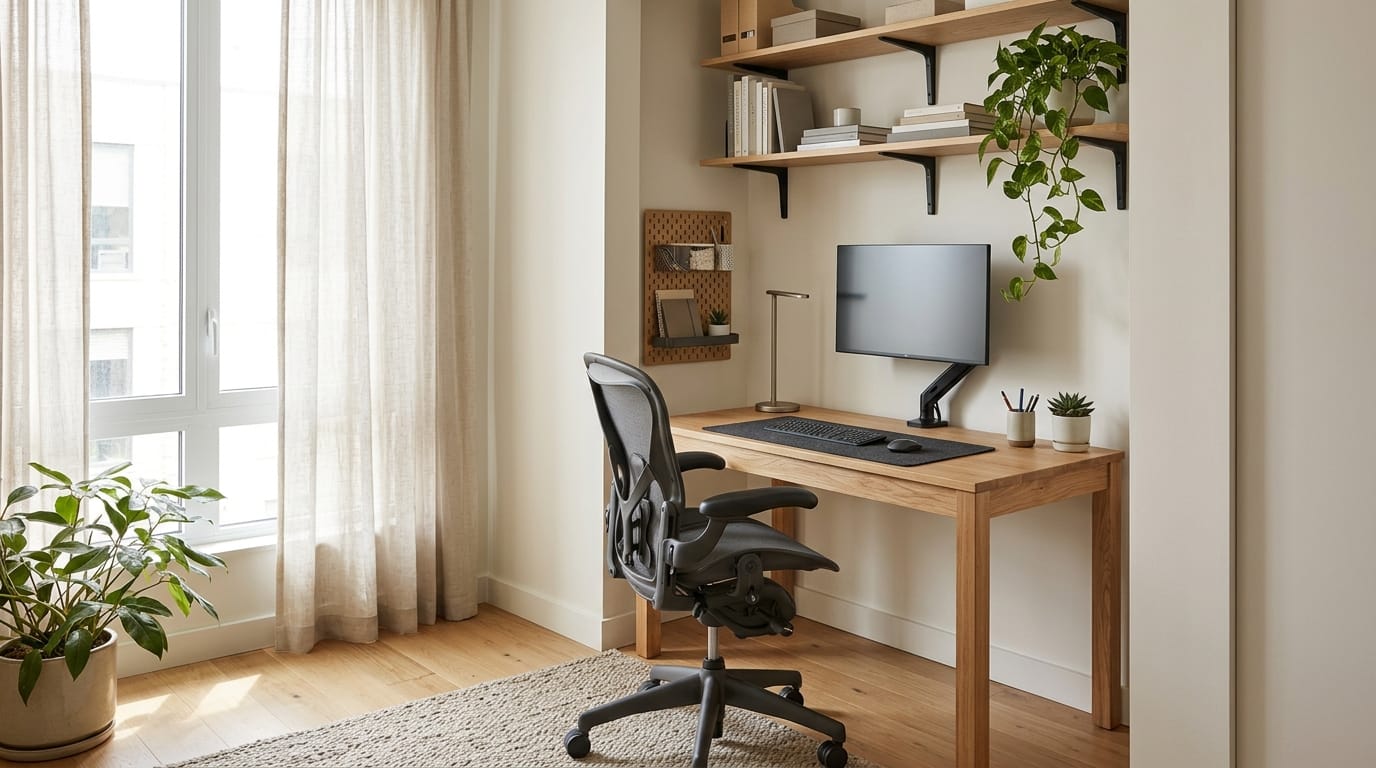
Small home office ergonomics in 2026 is about creating a comfortable workspace without requiring an entire room. Whether you work from a studio apartment, a bedroom corner, or a shared living area, the right furniture arrangement can make your daily routine easier.
However, limited space presents challenges. A narrow desk may force your monitor too close. An oversized office chair can block a doorway. Poorly placed accessories may leave your shoulders, wrists, or neck in uncomfortable positions throughout the day.
Fortunately, an ergonomic home office does not need expensive furniture or a large floor plan. Thoughtful measurements, adjustable equipment, and sensible storage can help you use the available space effectively.
This guide explains how to choose a compact desk, adjust your office chair, position your monitor, and organize a small workstation for comfortable daily use.
How to Plan an Ergonomic Small Home Office Layout
Before buying furniture, measure the area where you plan to work. Include the width, depth, available wall space, and clearance around doors, windows, and nearby furniture.
Next, think about your actual tasks. Someone who primarily uses a laptop may need less equipment than a designer working with two monitors and a drawing tablet.
Your goal is to create enough room for comfortable movement, not simply to fit the largest possible desk into the corner.
Consider natural lighting, nearby electrical outlets, internet access, and whether the workspace must be shared with other household activities.
Choose a compact desk with enough working depth
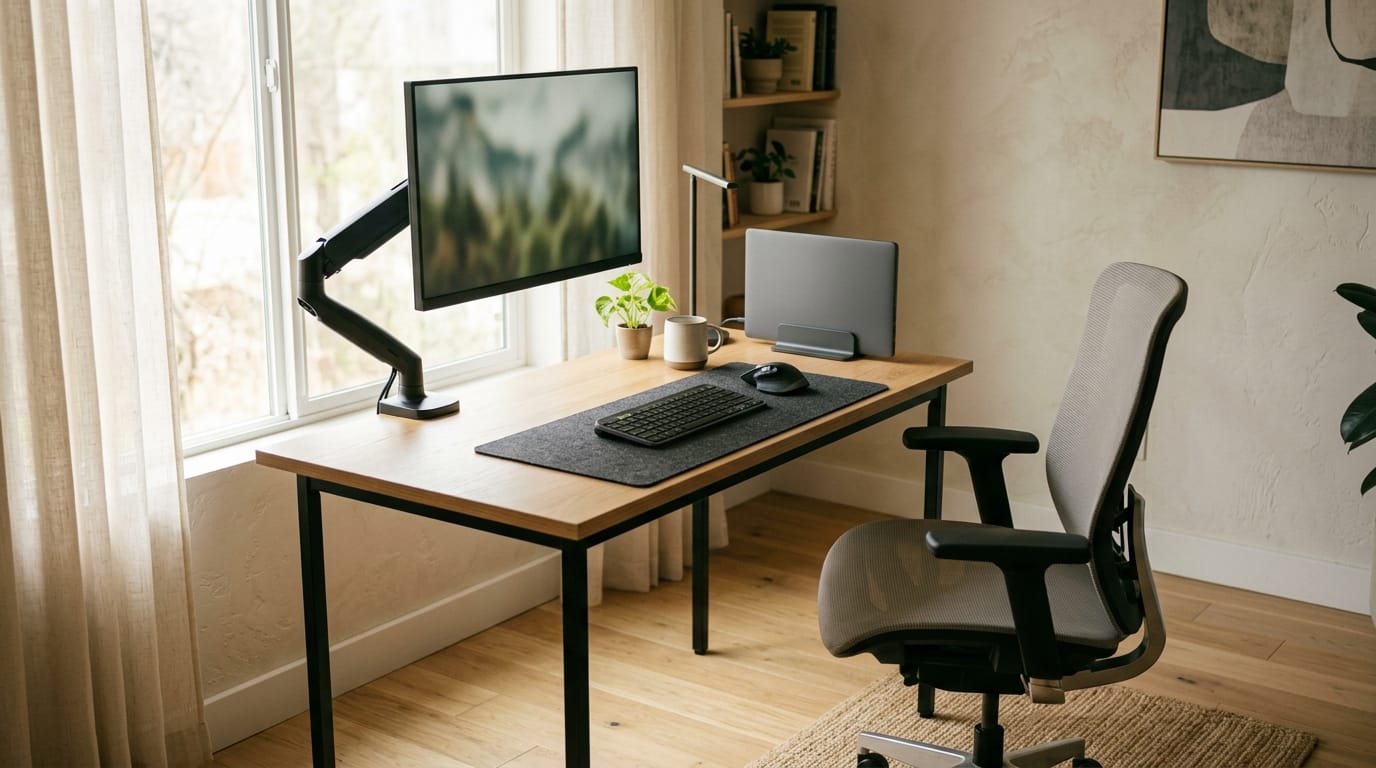
Desk width receives plenty of attention, but depth is equally important. A narrow desk might look attractive in a small room while leaving insufficient distance between your eyes and the screen.
According to the Occupational Safety and Health Administration, computer monitors should generally be positioned at least 20 inches from the user, with preferred viewing distances commonly ranging from 20 to 40 inches.
Therefore, choose a desk deep enough for your monitor, keyboard, and normal working position. Your ideal dimensions depend on screen size, monitor mounting, and individual comfort.
A wall-mounted desk or compact rectangular workstation can work well. However, avoid choosing furniture solely because it saves floor space.
Wall-mounted, corner, and narrow desks compared
Wall-mounted desks can free floor space and create a clean appearance. Some fold away when not in use, making them suitable for multipurpose rooms.
However, mounting hardware and wall construction must support the intended load. A fold-down desk may also offer limited depth or adjustment.
Corner desks make use of otherwise neglected areas. They can provide more effective monitor depth, although poorly designed corner shapes may restrict leg movement.
Narrow desks are simple to position against walls, but they require careful equipment selection.
Before purchasing, check actual measurements rather than relying on product photographs. Include the chair’s footprint and the space needed to sit down comfortably.
Leave enough space for chair movement and leg clearance
One common mistake is planning the desk but forgetting the chair. Office chairs need room for their bases, armrests, and normal movement.
Measure the chair’s overall dimensions, including its base and maximum armrest width. Then check whether the chair can move away from the desk without striking nearby furniture.
Under the desk, avoid storing boxes, computer towers, or unnecessary equipment that restricts your legs.
OSHA recommends providing enough clearance for users to change seated positions comfortably. Space beneath the work surface should allow the legs and feet to move without obstruction.
If your chair does not fit properly, a smaller adjustable model may be more useful than an oversized executive chair.
Position your monitor without sacrificing desk space
Monitor placement is particularly important in a compact workstation because limited desktop depth can encourage forward leaning.
Ideally, place your primary monitor directly in front of your normal sitting position. The top of the screen should generally be at or slightly below eye level.
Keep the screen far enough away to read comfortably without leaning forward. Adjust text size if necessary rather than moving an oversized display too close.
For more information, read our screen-first workstation ergonomics guide, which explores monitor arms, display placement, and furniture choices.
When a monitor arm is worth the space savings
A monitor arm can free desktop space by replacing a conventional monitor stand. It may also make screen height and viewing distance easier to adjust.
However, not every small desk supports a clamp-mounted arm. Check the desk manufacturer’s load limits, desktop construction, edge clearance, and mounting requirements.
Thin or lightweight desktops may need reinforcement or may be unsuitable for certain arms.
For laptop users, a suitable stand with a separate keyboard and mouse can help avoid prolonged downward viewing.
Whatever equipment you choose, prioritize stable mounting and comfortable positioning over appearance alone.
How to Make a Small Home Office Comfortable and Productive
Once the desk fits, focus on how your body interacts with the workstation. A compact office should support natural movement instead of forcing you into one rigid position.
Ergonomic comfort depends on several connected elements: chair adjustment, work surface height, input-device placement, lighting, and regular changes in posture.
These elements can usually be improved gradually. You do not need to replace every piece of furniture at once.
Adjust your chair and keyboard for a neutral posture
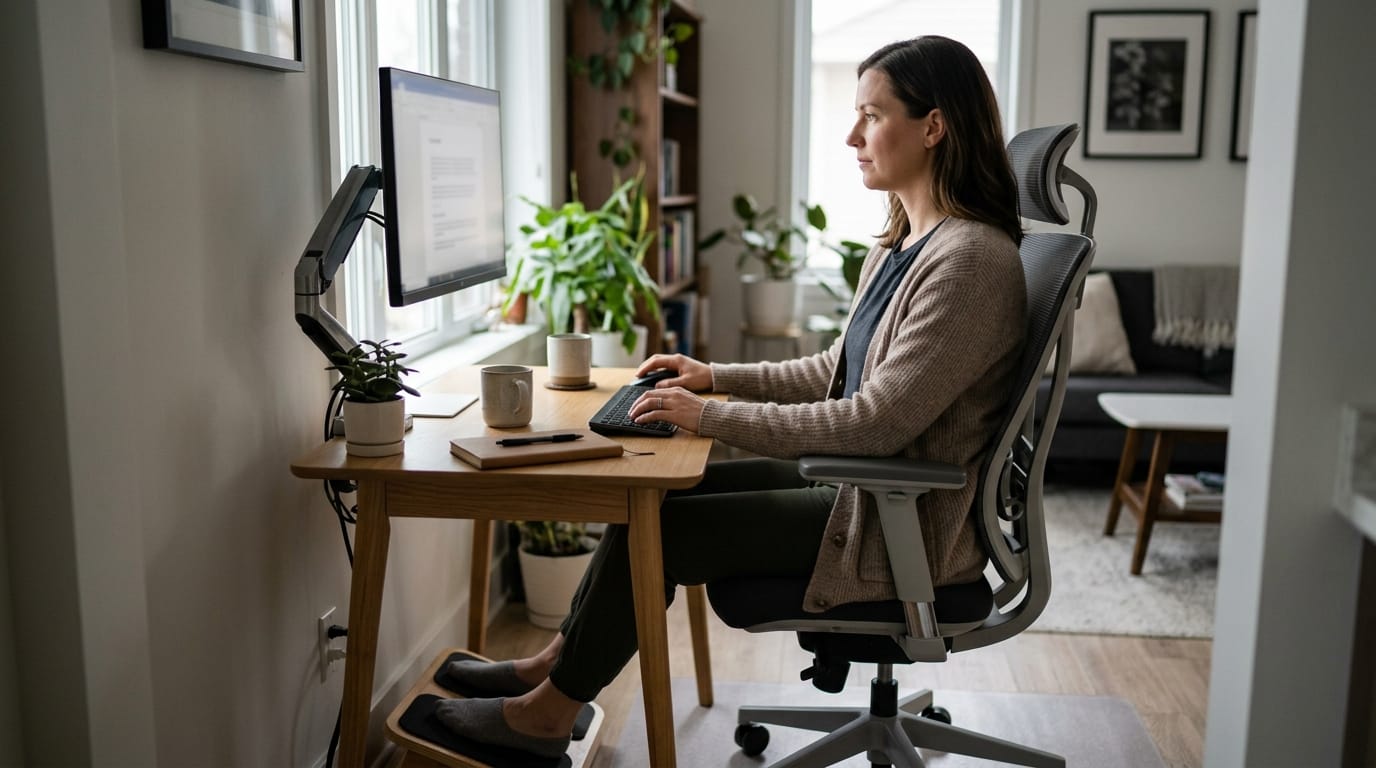
Begin by adjusting your chair so your feet rest comfortably on the floor or a stable footrest. Your back should receive appropriate support, and your thighs should not experience excessive pressure from the front of the seat.
Next, position the keyboard and mouse close enough that you can use them without repeatedly reaching forward.
Your shoulders should remain relaxed, with elbows reasonably close to your body. Aim for straight, comfortable wrist positions instead of sharply bending your hands upward or sideways.
If the desk is too high, adjusting chair height may improve arm position, but a footrest may then be necessary.
Our ergonomic office chair setup guide provides detailed instructions on seat height, lumbar support, and backrest adjustment.
Budget-friendly adjustments before buying new furniture
Before replacing your desk, identify the specific source of discomfort. The problem may involve monitor height, mouse reach, inadequate foot support, or insufficient lighting.
A stable footrest can improve support when your feet do not reach the floor. A suitable laptop stand may raise the display, while an external keyboard can improve typing position.
Moving frequently used items closer can reduce unnecessary reaching. Increasing screen text size may also allow a more comfortable viewing distance.
These changes are often less expensive than purchasing an entirely new workstation.
However, avoid unstable improvised stands or accessories that introduce tipping hazards. Any equipment supporting a screen should be strong enough for its intended use.
Comfort is individual, so evaluate improvements during normal work rather than relying solely on advertised ergonomic features.
Improve lighting, storage, and daily movement
Small workspaces often serve multiple purposes. A bedroom corner may become an office during the day, while a dining table may function as a temporary workstation.
Good lighting can make these transitions more comfortable. Position your monitor to reduce reflected glare, and use adjustable task lighting when necessary.
Placing a monitor perpendicular to a window can often help control glare, although the best arrangement depends on room geometry and available light.
Storage also affects ergonomics. When a desk is crowded, the keyboard and mouse may be pushed into awkward positions.
Use wall shelves, vertical organizers, or drawers for items you do not need continuously. Keep frequently used tools within comfortable reach.
The area directly in front of you should remain available for essential equipment and everyday tasks.
Explore our AI-ready home office setup guide for additional ideas about arranging displays, desk equipment, and modern work tools.
Build movement breaks into your workday
Even a carefully arranged workstation should not require you to remain in the same position all day.
Change posture regularly, stand up when practical, and take short breaks from prolonged computer work.
Simple movement might include walking to refill water, stretching your legs, or stepping away from the screen between tasks.
A sit-stand desk can offer additional working positions, but it is not essential for every small office. Standing continuously can also become uncomfortable.
The goal is variation rather than finding one supposedly perfect posture.
For remote workers, scheduling movement between meetings may be more realistic than following a rigid exercise routine.
Keep pathways clear so everyday movement does not create a tripping hazard. Manage electrical cords with appropriate cable organizers, avoiding overloaded outlets or unsafe routing.
When sharing a room, consider a portable divider or consistent end-of-day storage routine. Separating work equipment from personal activities may make the space easier to manage.
Choose furniture that performs more than one useful function when possible. A compact storage cabinet might organize supplies and keep the floor clear without occupying additional wall space.
multipurpose furniture
However, multipurpose furniture should still support safe loading and comfortable working dimensions. A visually clever design is not automatically ergonomic.
For authoritative workstation guidance, review the OSHA Computer Workstations eTool. It explains monitor placement, chair adjustment, desk clearance, and other relevant workstation considerations.
When planning your budget, prioritize adjustments that affect comfort and usability. A dependable chair and appropriately sized work surface usually deserve attention before decorative accessories.
Check return policies and actual furniture dimensions when purchasing online. Products labeled ergonomic may still be unsuitable for your height or available space.
Remember that occasional discomfort has many possible causes. A workstation adjustment may help reduce awkward positioning, but it cannot diagnose or treat every source of pain.
If you experience persistent pain, numbness, weakness, or other concerning symptoms, seek advice from a qualified healthcare professional.
Small home office ergonomics in 2026 does not depend on creating an expensive designer workspace. It begins with accurate measurements, adequate monitor distance, adjustable seating, and a practical arrangement of essential equipment.
With the right combination of compact furniture, thoughtful storage, suitable lighting, and movement breaks, even a small corner can become a functional workspace.
Start with the changes that solve your biggest problems, then improve the setup as your work requirements evolve. A successful small home office should fit both your room and the way you work.